Markus Editor replaces TinyMCE in Joomla 6. You write block by block: a paragraph, a heading, an image, columns. Type ## and a space, you have a heading; paste Markdown, it becomes blocks. The article is saved as ordinary HTML, which TinyMCE reads as it is.
Free. A joomanji.eu account is required to download it. One plugin, Editor - Markus: no component, no dependency.
Download Markus Editor Read the manual
Who it is for
Anyone who writes Joomla articles and would rather write in blocks, or in Markdown, than in TinyMCE's toolbar. And whoever runs the site: Markus can be chosen for the whole site or for one writer, so one person can keep TinyMCE while another tries Markus.
Writing in blocks
Blocks
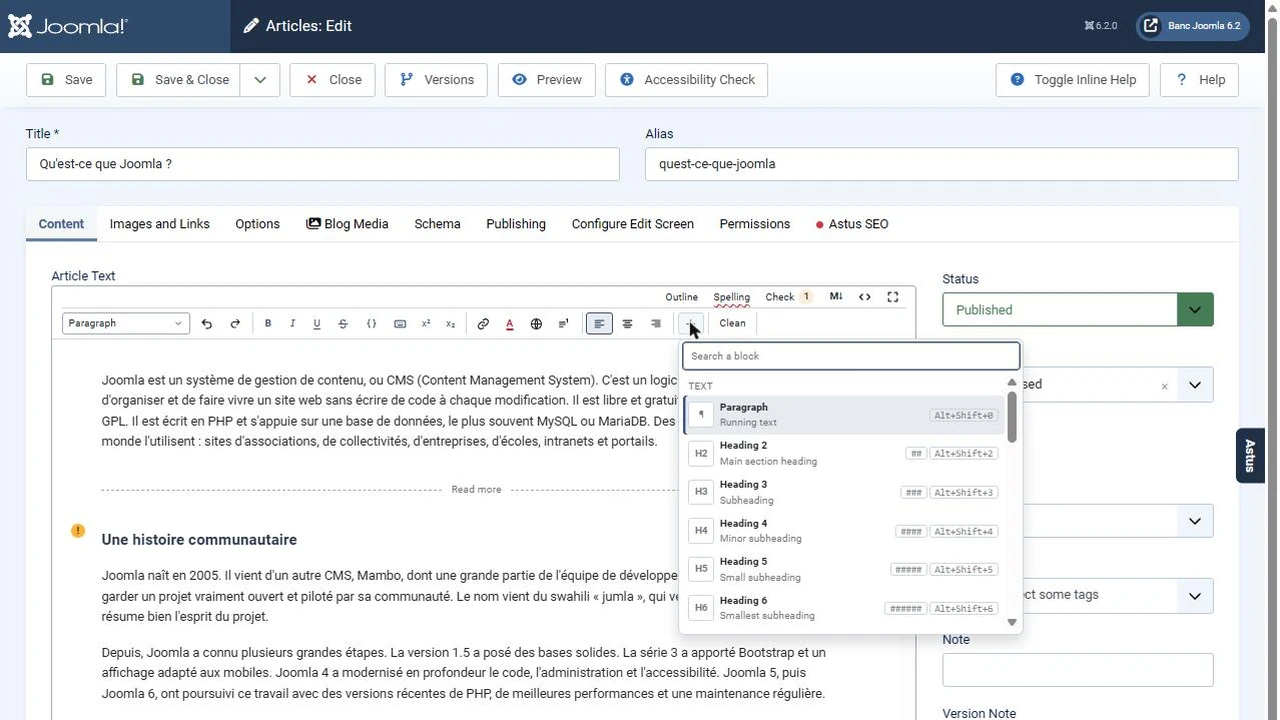
Paragraphs, headings, lists, quotes, callouts, code, images, buttons, tables, columns, modules. A "/" or a "+" adds one.
Markdown without seeing it
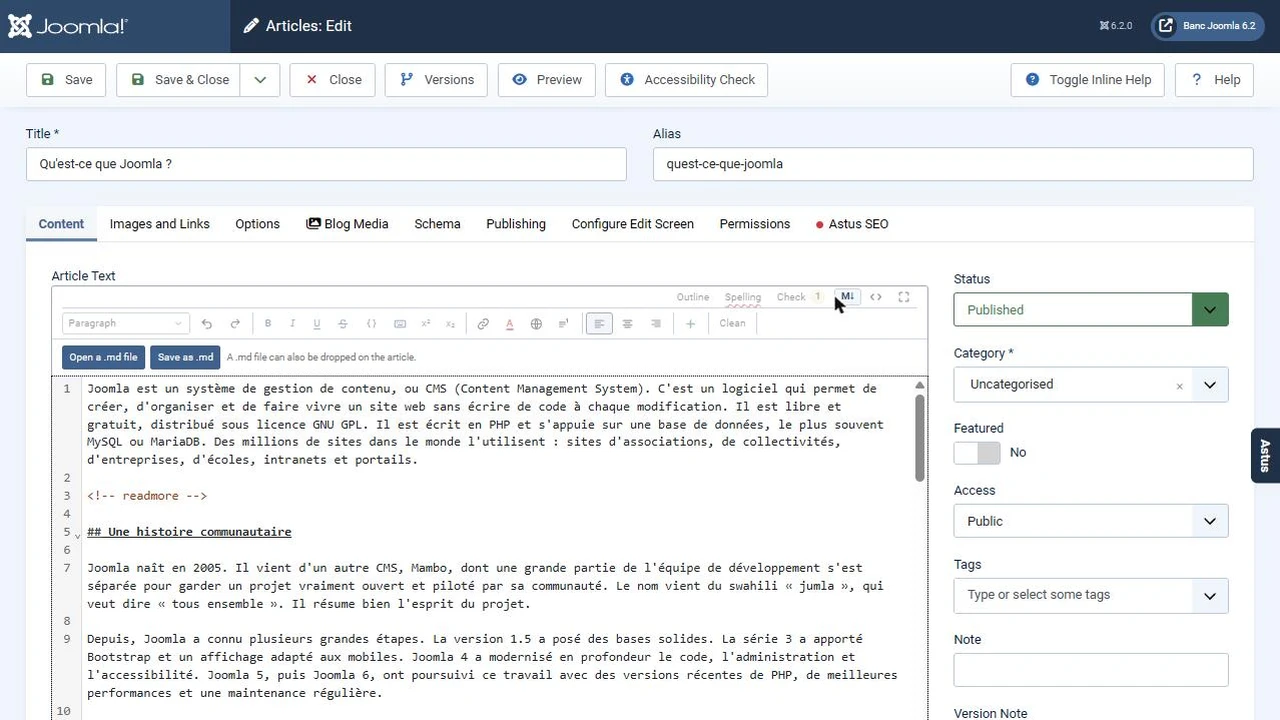
Typing shortcuts, pasting, opening and saving .md files, and a Markdown view of the whole article.
Plain HTML
What is saved is ordinary, semantic HTML, with no invented style. Nothing is lost: what Markus cannot edit is kept as it is, in a "Raw HTML" block.
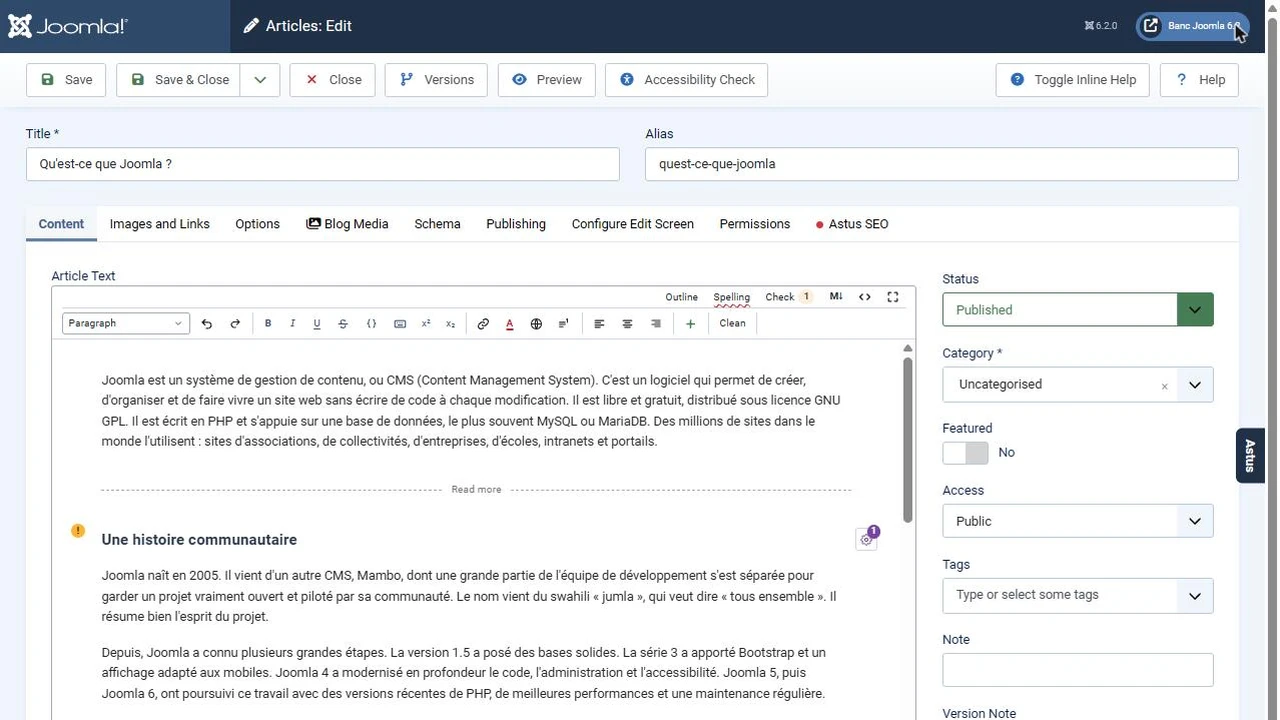
Each block has its gear, which opens its settings on the right. These settings only write Bootstrap classes: your template draws the result. You move, copy, duplicate or hide a block, and everything works from the keyboard. The article outline, full screen, the word count and the reading time are close at hand.
Markdown, without changing your habits
- As you type:
##,-,1.,>,**bold**,*italic*turn into blocks and formatting at once. - On paste: Markdown text from Claude, from GitHub or from a file is recognised and turned into blocks. The HTML it contains comes out as text: a pasted
<script>never becomes a tag. - As a file: open a
.mdfile in the article, or save the article as.md. - As a Markdown view: the whole article in Markdown, then back to the blocks. Before switching to Markdown, Markus lists what would be lost and lets you choose.
Pasting from Word or a web page
Text pasted from Word, LibreOffice, Google Docs or a web page is cleaned: styles go, lists are rebuilt, headings stay headings. Images do not travel through the clipboard: Markus says so, and you insert them with the Image block.
The Clean menu also removes, on request, bold, italic, colours, highlights and alignments from a passage or from the whole article, and applies French typography (non-breaking spaces before ; : ! ? and inside quotation marks).
Clean HTML, and the way back to TinyMCE
Markus saves paragraphs, headings, lists and tables, with Bootstrap's classes: no wrapping tag, no Markdown in the database. Joomla's search, modules, the API, Read more and third-party extensions see the article as they do with TinyMCE.
An article written with TinyMCE opens in Markus and comes back identical if it was not touched. An article written with Markus opens in TinyMCE. You can switch editors at any time, safely.
Accessibility checked while you write
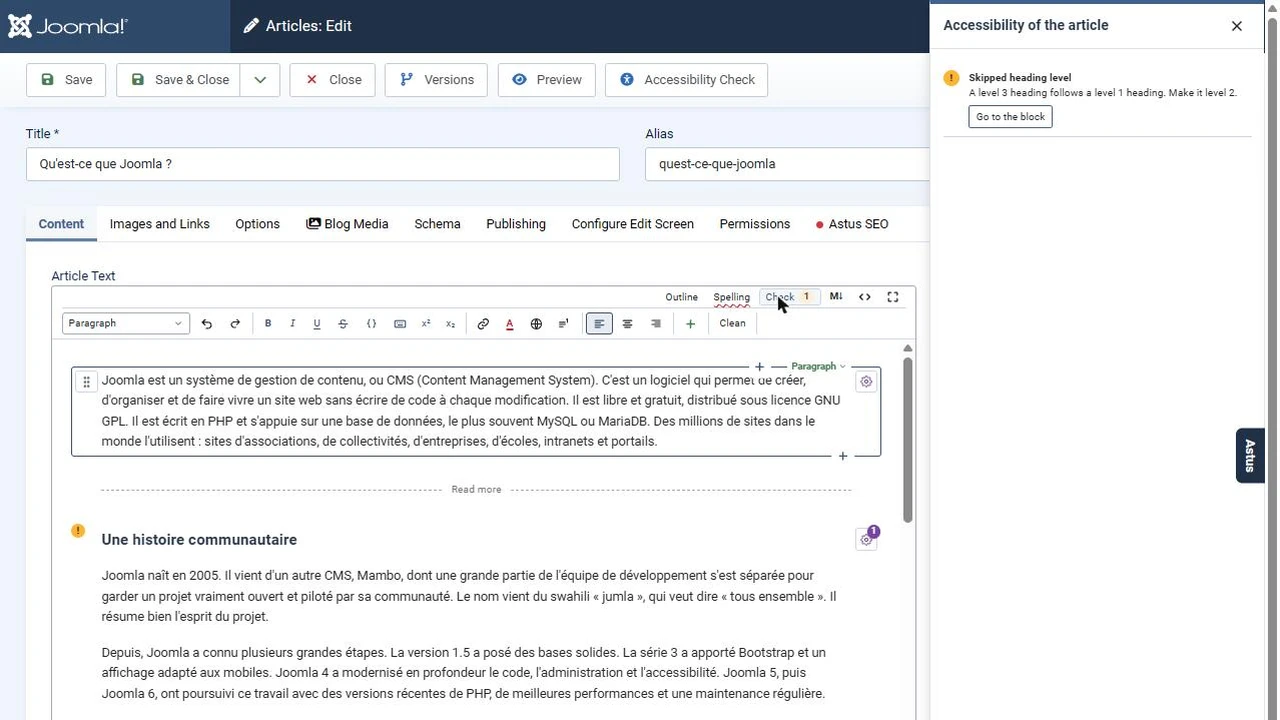
The Check button counts alerts as you write, and Go to the block leads to the passage concerned: image without a text alternative, level 1 heading or skipped heading level, link text that says nothing or no text at all, contrast too low, table without a title or headers. Alerts inform, they never block saving.
Colours stay readable in light and dark mode: you choose the hue, and Markus computes the lightness (at least 4.5:1). A link opened in a new tab is announced to screen readers, and the language of a passage can be marked. No tool replaces your own review: "no problem found" is not a statement of conformance.
Spelling with LanguageTool
The Spelling button checks the article on demand, and live underlining marks mistakes as you type. Your choice: LanguageTool's public service, free but limited to 20 checks a minute per writer, or your site's own LanguageTool server, where the text stays with you. The text of the article goes to LanguageTool for each check, and Markus says so. The check can also be turned off: nothing is then sent.
Footnotes and your extensions' buttons
Right click, Footnote: the number goes at the cursor, the note is added at the end of the article with its Back to the text link, and numbers follow each other on their own.
The editor buttons of Joomla and of your extensions (Article, Menu, Module, Opus, Formulus, Iris...) talk to Markus as they talk to TinyMCE: it puts them in its block list. The Image block opens Iris when it is installed, and the gear of a module placed by Opus, Formulus or Iris opens that product's window.
Install Markus
- Download the archive from this page, as soon as it is there.
- In your administrator, open System, Install, Extensions and upload the archive, like any other Joomla extension.
- Choose Editor - Markus in System, Global Configuration, Site, Default Editor, or for one writer in their account.
What to know before installing
Markus is an editor plugin. It requires Joomla 6.2 and PHP 8.3 at least: on an older version, the install stops with a message. It works with any Bootstrap template: Corpus, Cassiopeia and the others. Its interface speaks English, French, German and Spanish, and it is released under the GNU GPL, version 2 or later.
Markus was developed by a human and an AI. The constraints were many, firm and strictly framed: accessibility, code quality, speed and lightness, in the code as in the components.